Admin User Interface
Graph
The Graph area is an interactive graph explorer where you can visualize your data objects and their relationships. This area is particularly useful when you need to understand the connections between objects in your database, explore how data is interlinked, or navigate complex relationship structures. By starting from a query result, you can progressively expand the visualization to discover related objects step by step. By default, this area is hidden in the burger menu.
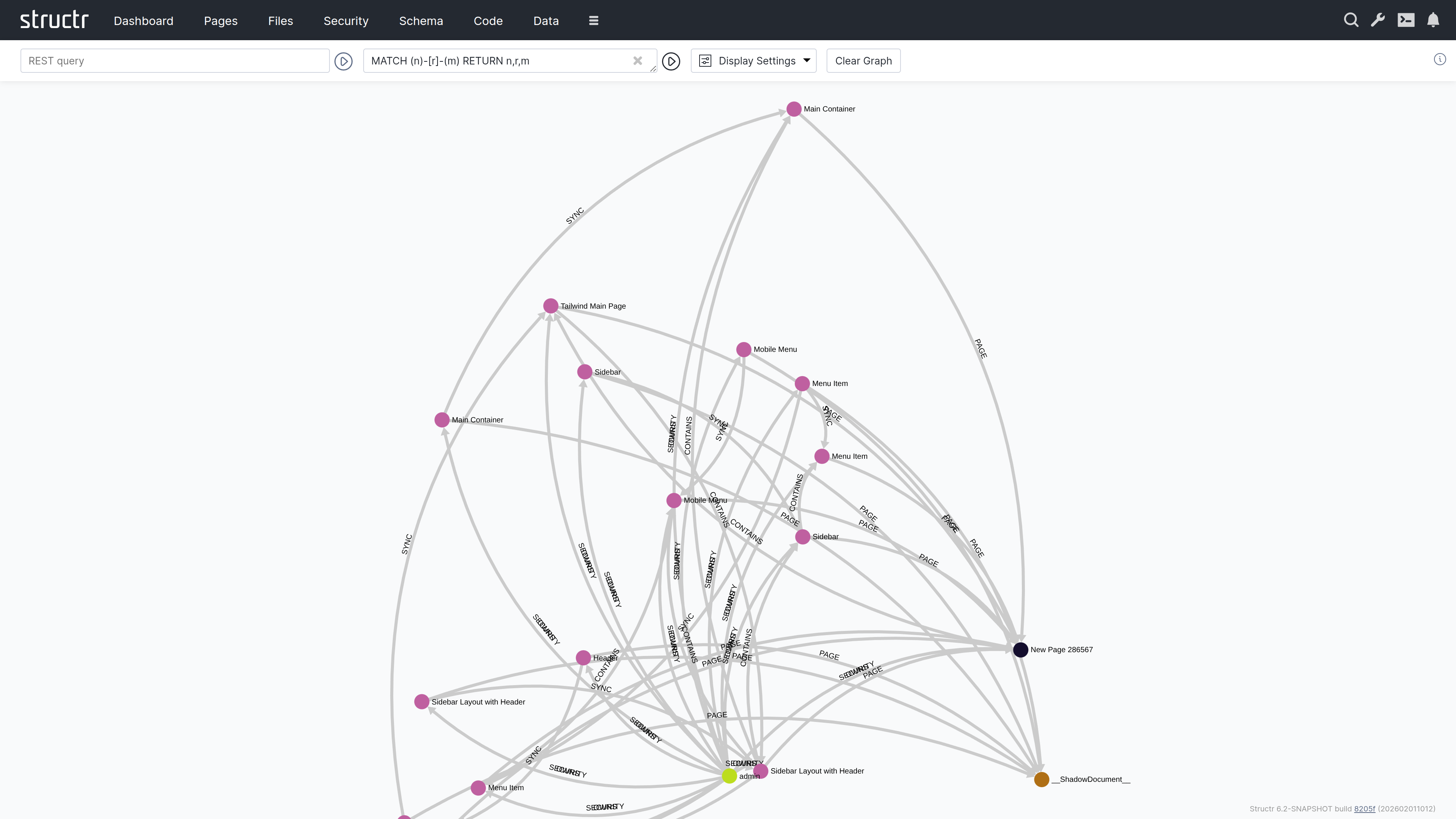
Querying Data
The header contains two input fields for specifying which data to display.
REST URL
In the left input field, you can enter a REST URL to load objects. The results will be displayed as nodes in the graph visualization.
Cypher Query
In the right input field, you can enter a Cypher query to further filter or transform the results.
The Graph Visualization
Each object returned by your query appears as a filled circle on the canvas, with its name displayed as a label.
Exploring Relationships
When you hover over a node, additional colored circles appear around it. Each colored circle contains a number indicating how many outgoing relationships of a particular type exist. The colors distinguish different relationship types.
Click on one of these colored circles to follow all relationships of that type. The related nodes are then added to the visualization, and you can see the connections between them. This way, you can progressively navigate through your data graph, expanding the view step by step.
Node and Edge Tooltips
Clicking a node opens a tooltip with three buttons: Properties opens the property dialog of the object, Remove takes the node out of the visualization without touching the database, and Delete deletes the object from the database. The tooltip of an edge offers Properties and Delete.
Display Options
A dropdown menu next to the input fields provides configuration options:
Display Options
Two checkboxes control what’s shown in the visualization:
- Node Labels – Shows or hides the names on nodes
- Edge Labels – Shows or hides the names on relationship lines
Node Types
Checkboxes let you show or hide nodes by type group: Core Types, UI Types, Custom Types, HTML Types, Log Types and Other Types. This keeps the visualization readable when a query returns objects of many different types.
Layout Algorithm
The “Set Layout” section offers two static layouts, Fruchterman and Dagre, that arrange the nodes once. “Dynamic Layouting On/Off” toggles ForceAtlas2, a continuous force-directed layout that keeps rearranging the nodes while it is active.
Clear Graph
This button resets the visualization, removing all displayed nodes and relationships so you can start fresh.